Nov 4, 2026 · By Seth Fuhr
You can run any script inside a recovered VM from a Zerto post-recovery script on the ZVM Appliance, even without WinRM, a domain or a network path to the guest. The answer is PowerCLI’s Invoke-VMScript, which sends the script through vCenter and VMware Tools instead of the network.
Many recoveries need a step inside the operating system: point an app at a DR database, restart a service, open a firewall port, or teach servers to find each other. On the old Windows ZVM, Invoke-Command handled that. On the Linux-based ZVM Appliance it doesn’t, and this post explains why, how Invoke-VMScript fills the gap, and how to build scripts around it that you can trust. The worked example at the end writes a hosts file onto every VM in an isolated bubble test, where there’s no domain controller and no DNS.
The problem: Invoke-Command doesn’t travel to the appliance
On a Windows ZVM, in-guest steps were easy because the ZVM itself was usually domain joined. Its service ran as a domain account, so a script could call Invoke-Command over WinRM and Kerberos handled authentication silently. The ZVM Appliance changes every piece of that.
| Windows ZVM | ZVM Appliance | |
|---|---|---|
| Script engine | Windows PowerShell | PowerShell Core (pwsh) on Linux |
| Identity | Domain service account | None; every credential is explicit |
Invoke-Command to Windows guests | Works over WinRM and Kerberos | No practical path from Linux pwsh |
| Windows-only modules | Available | Not available |
| Network path to the guest | Usually there | Often missing: re-IP’d, firewalled or isolated |
| Getting scripts onto it | Copy to a folder | Upload through the ZVM UI |
Even where WinRM could be made to work, it would depend on the very things a recovery tends to break: name resolution, routing, firewall rules and a reachable domain controller. In-guest scripting needs a path that doesn’t depend on the guest’s network at all.
The fix: Invoke-VMScript
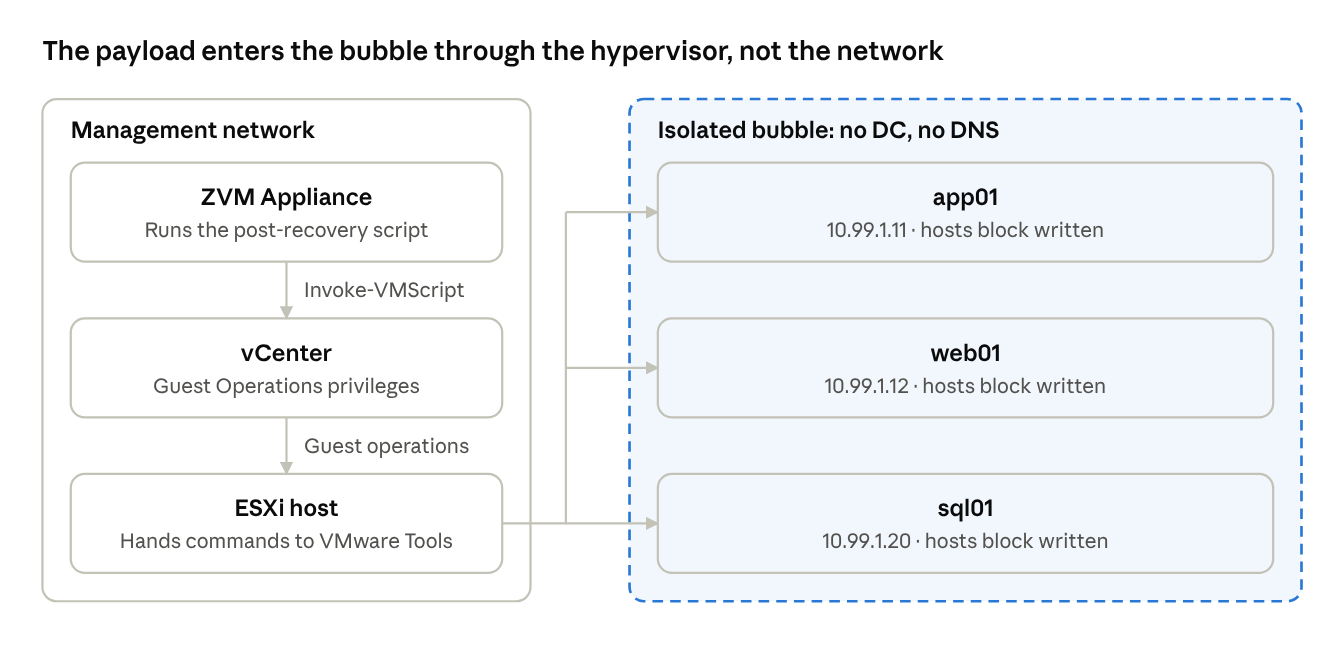
The appliance ships with VMware PowerCLI, and its Invoke-VMScript cmdlet asks vCenter to run a script inside a VM through VMware Tools. The command travels from the ZVM to vCenter on the management network, then to the ESXi host, and into the guest through Tools. The guest’s own network is never involved.
That removes every dependency that broke Invoke-Command:
- No WinRM, no Kerberos, no domain trust. Authentication happens inside the guest with an account you supply.
- No network path to the VM. It works on re-IP’d VMs, behind firewalls, and in fully isolated networks.
- Any language the guest runs.
-ScriptType PowershellorBaton Windows,Bashon Linux. - Output comes back. You get the guest’s exit code and its output, so the ZVM can log what happened inside.
The requirements are small: VMware Tools running in each guest, a vCenter account with the Virtual Machine > Guest Operations privileges, and a guest OS account that can do the work. A local account is enough, which matters when the domain controllers aren’t up yet.
Anatomy of a reliable in-guest script
Every post-recovery script that acts inside the OS follows the same seven stages, and only one of them changes from job to job:
- Check the operation. Decide whether to act on a test, a failover or a move.
- Load the config. Credentials and settings live in a separate file next to the script.
- Connect to vCenter. Use the address Zerto passes in.
- Find the recovered VMs. Never the source VMs.
- Wait for VMware Tools. The script starts as soon as VMs power on, before Tools is ready.
- Run the payload. The commands that run inside the guest; this is the only stage that changes.
- Log the result and set the exit code. So Zerto alerts on failure.
You never hardcode VM names or vCenter addresses, because Zerto sets environment variables on every run:
| Variable | What it holds |
|---|---|
ZertoOperation | The operation type, such as Test, FailoverBeforeCommit or MoveBeforeCommit |
VmDisplayNames | Comma-separated names of the VMs in the VPG |
ZertoHypervisorManagerIP | The recovery site vCenter |
ZertoVPGName | The VPG name, handy for naming the log |
ZertoOutputDir | The Output folder, viewable in the ZVM UI under Manage Recovery Scripts |
Getting the six fixed stages right is what makes a script trustworthy:
- Know where the script runs. Zerto runs it from inside its own Repository folder, and
$PSScriptRootis not populated. Locate the config relative to the current directory. - Find the recovered VM, never the source. During a test, Zerto names the VM
<name> - testing recoveryin vCenter while production keeps running, often in the same vCenter. Look for that name first, keep only powered-on matches, and require exactly one. - Wait, then verify. Call
Wait-ToolsbeforeInvoke-VMScript, and have the payload report whether it actually worked. - Load only the PowerCLI module you need. Importing just
VMware.VimAutomation.Coreinstead of all ofVMware.PowerCLIkeeps a run under a minute instead of several. - Log every step and fail loudly. Write timestamped lines to the Output folder, catch every error with the failing line, and exit 1 on any failure. Zerto raises an alert on a non-zero exit, but the recovery itself carries on.
- Size the timeout. Cover the module load, the vCenter login, Tools, the payload and every VM, since they run one after another.
- One post-recovery script per VPG. If you need several in-guest jobs, run them all from one script.
Worked example: a hosts file for an isolated bubble test
Here’s the pattern applied to a common problem. You run a test failover into an isolated bubble network to validate an application, and you deliberately leave the domain controllers out. The app servers boot, look for sql01.corp.local, and get nothing back, because DNS lived on the DCs. The payload fixes that by writing the same hosts file onto every recovered VM.
Why a hosts file
You could recover a DC into the bubble instead, but that adds boot time, AD restore concerns, and in a cyber recovery clean room, a DC you may not want to trust. A hosts file needs no infrastructure at all. Windows checks it before sending any DNS query, so entries work immediately, and Linux has the same file at /etc/hosts. The limit: it supplies names, not authentication, so apps that need Kerberos or domain logons still need a DC.
This is also where Invoke-VMScript shines. Isolation blocks every normal management path into the bubble, but the hypervisor path still works.
Building the payload
Don’t type IP addresses into the script. vCenter already knows each recovered VM’s hostname and IP, so the script builds the table at recovery time:
- Collect the VMs. Take the names from
VmDisplayNames, plus any extra names from the config, such as VMs in another VPG the app needs to reach. - Wait for each VM to report. After
Wait-Tools, pollGet-VMGuestuntil it shows an IPv4 address. Skip loopback and169.254.x.x, which mean the network isn’t configured yet. - Build one block. For each VM, write its IP, FQDN and short name. Wrap the lines in begin and end markers, and add static entries from the config for anything that isn’t a VM.
- Push the block to every VM. The in-guest payload removes any existing block between the markers, writes the new one and flushes the DNS cache. Replacing the block instead of appending makes a second run update changed IPs rather than pile up duplicates.
- Verify from the inside. Each guest resolves a couple of its peers with
Resolve-DnsNameand reports SUCCESS or FAILED, so the log proves the bubble can find itself.
The result on every VM:
# BEGIN ZERTO-BUBBLE (written 2026-11-04 09:12 by post-recovery script)
10.99.1.11  app01.corp.local  app01
10.99.1.12  web01.corp.local  web01
10.99.1.20  sql01.corp.local  sql01
# END ZERTO-BUBBLE
What changes in a bubble
- Run on tests on purpose. Most in-guest scripts should be careful during tests. Here, the test is the whole point, so act on
Test, but first confirm the VPG’s test network really is isolated. - Allow for slower boots. Domain-joined servers can take longer to settle without a DC. Be generous with the Tools and IP timeouts, and size the VPG’s script timeout to match.
- Check the firewall profile. Windows applies the Domain firewall profile only when it can reach a DC. In the bubble, servers usually fall back to Private or Public, and rules scoped to Domain stop applying. If names resolve but the app can’t connect, look here first.
- Mind multi-VPG apps. A post-recovery script runs once per VPG. If the app spans two VPGs, run the script on the last one to recover, or keep the app in one VPG.
- Leave nothing behind. Test VMs are discarded when the test stops. If you ever do a live failover into an isolated environment you’ll later reconnect, remove the marked block before the VMs rejoin the real network.
Accounts and credentials
Invoke-VMScript needs two credentials: one for vCenter and one inside the guest. Plan both before you write a payload.
- Use a local guest account. Domain accounts depend on a reachable DC, which a recovery may not have, and a bubble never does. Give one local account the same name and password on every VM. The built-in Administrator is simplest; another local admin can work, but test it, because UAC can stop it from changing protected files.
- Watch for LAPS. If Windows LAPS rotates local administrator passwords per server, one shared password won’t work. Exclude a dedicated recovery account from LAPS, or fetch each server’s current password from your vault.
- Scope the vCenter account. Give it a role with only the Guest Operations privileges, not administrator rights.
- Keep secrets out of the Repository. A config file with plain-text passwords is fine for a lab, but anyone who can download files from the ZVM can read it. In production, have the script pull credentials at runtime from a vault such as CyberArk, HashiCorp Vault or Azure Key Vault, over REST with
Invoke-RestMethod.
The vault option works even for isolated recoveries. The ZVM lives on the management network, not inside the bubble, so it can reach the vault while the recovered VMs stay sealed off.
Beyond the example: other payloads
The hosts file is just one payload. Once the six fixed stages work, each new in-guest job is a few lines of guest code dropped into stage 6.
| Post-recovery need | Payload inside the guest | Watch out for |
|---|---|---|
| Restart a service that started before its dependency | Restart-Service, then confirm it reports Running | Add a delay if the dependency is slow |
| Point an app at DR resources | Edit a config file or connection string, then restart the app | Back up the original so failback can restore it |
| Register DNS after a re-IP | ipconfig /registerdns and Register-DnsClient | Needs a reachable DC; skip during tests |
| Open the firewall in a bubble | Allow the app’s ports on the Private or Public profile | Only where the Domain profile can’t apply |
| Silence things that call out | Stop and disable backup agents, mail relays or schedulers | A recovered copy must not act like production |
| Leave validation evidence | Write a timestamped result file on each VM | A record for auditors or the runbook |
| Linux guests | -ScriptType Bash to edit /etc/hosts or restart a systemd unit | Needs a local account with sudo or root |
Four rules keep any payload safe:
- Make it idempotent. A second run should reach the same end state, not double the changes.
- Mark what you change. Markers in files and clear names on rules let a cleanup step find and undo exactly your changes.
- Report one clear result. End with one line of output and a non-zero exit code on failure.
- Decide where it may run. Some payloads are safe in a test and some only belong in a real failover, so check
ZertoOperationand the target network before acting.
Recreate it yourself: the prompt
Paste this into an AI assistant to generate the bubble hosts script and its config file, with every practice above built in. Replace the bracketed values first. For any other in-guest task, keep the requirements for stages 1 to 5 and 7 as written, and replace the hosts-specific bullets with a description of your own payload.
Write PowerShell for a Zerto post-recovery script that gives every recovered VM a hosts file, for recoveries into an isolated network with no domain controller and no DNS. It runs on the Zerto ZVM Appliance (Linux, PowerShell Core 7) with a VMware vSphere recovery site. All commands inside VMs must go through VMware PowerCLI Invoke-VMScript via vCenter and VMware Tools. Do not use WinRM, PSRemoting, SSH, or any network connection to the VMs; the VMs are unreachable on the network.

Create two files.

1. bubble-config.ps1, a config file dot-sourced by the script. It defines:
- $VcUser, $VcPass: vCenter account with Guest Operations privileges
- $GuestUser, $GuestPass: a LOCAL account that exists with the same password on every VM (no domain is available)
- $DomainSuffix = '[corp.local]'
- $ExtraVMs = @(): names of VMs in other VPGs to include in the table
- $StaticEntries = @(): extra hosts lines, for example '[10.99.1.50  appliance01.corp.local  appliance01]'
- $RunOnTest = $true, $RunOnFailover = $false (a live failover usually lands on the production network)
- $ToolsTimeoutSeconds = 900 and $IpWaitSeconds = 300 (isolated boots can be slow)
- $VerifyPeers = 2: how many peer names each VM resolves to verify the table

2. Set-BubbleHosts.ps1:
- Use Zerto's environment variables: $env:ZertoOperation, $env:VmDisplayNames (comma-separated), $env:ZertoHypervisorManagerIP, $env:ZertoVPGName, $env:ZertoOutputDir.
- Run on Test when $RunOnTest is $true, and on FailoverBeforeCommit or MoveBeforeCommit only when $RunOnFailover is $true. Otherwise log the reason and exit 0.
- $PSScriptRoot is empty when Zerto runs the script, and the script runs from inside its own Repository folder. Load bubble-config.ps1 from (Join-Path (Get-Location).Path 'bubble-config.ps1'), fall back to $env:ZertoWorkingDir, and log every path tried if it isn't found.
- Write a timestamped log to $env:ZertoOutputDir named 'bubble-hosts-<VPG>-<yyyyMMdd-HHmmss>.log', with a line before and after each stage.
- Wrap the whole script in try/catch that logs the error message and failing line number and exits 1. Wrap each VM in its own try/catch so one failure doesn't stop the rest.
- Import only VMware.VimAutomation.Core, not all of VMware.PowerCLI. Use Set-PowerCLIConfiguration -InvalidCertificateAction Ignore -ParticipateInCEIP $false -Scope Session -Confirm:$false.
- VM lookup, for every name in VmDisplayNames plus $ExtraVMs: when ZertoOperation is Test, try Get-VM -Name '<name> - testing recovery' first, then the plain name. Keep only powered-on matches and throw unless exactly one remains. The production VM may be running in the same vCenter, so never act on an ambiguous match.
- For each matched VM: Wait-Tools, then poll Get-VMGuest every 10 seconds, up to $IpWaitSeconds, until it reports an IPv4 address that is not 127.x or 169.254.x. Take the hostname from the guest's reported HostName (short name only), and build the line '<IP>  <short>.<DomainSuffix>  <short>'.
- Build one block: '# BEGIN ZERTO-BUBBLE (written <timestamp> by post-recovery script)', the VM lines sorted by name, the $StaticEntries lines, then '# END ZERTO-BUBBLE'.
- Push the block to every matched VM with a single-quoted here-string guest script that fills values with .Replace() placeholders. Inside the guest: read C:\Windows\System32\drivers\etc\hosts, remove any existing lines from the BEGIN marker through the END marker, append the new block, write with ASCII encoding, run ipconfig /flushdns, then resolve up to $VerifyPeers other names from the block with Resolve-DnsName and report SUCCESS or FAILED with the names that failed. Exit 1 on failure.
- Log each guest's ExitCode and ScriptOutput. Count failures, disconnect from vCenter, and exit 1 if anything failed (so Zerto raises an alert), otherwise exit 0.
- Add a comment on each line explaining what it does.

After the code, list the setup steps:
1. Confirm the VPG's test network is truly isolated.
2. Create the same local account on every protected VM, excluded from LAPS rotation.
3. Upload both files to the same Repository folder via VPGs > Actions > Manage Recovery Scripts on the recovery site ZVM.
4. Attach the script in Edit VPG > Recovery > Post-Recovery Script using Copy Path, with a timeout of at least 1200 seconds.
5. Run a Test Failover, then read the log in the Output folder and check the hosts file on a test VM.

Also note that a VPG takes only one post-recovery script, the Windows firewall falls back from the Domain profile without a DC, and plain-text credentials are only for labs; production should pull credentials from a password vault.